LUTs & resources
Apple iPhone 17 Pro / 17 Pro Max LUTs
Camera settings
- Camera app: Settings > Camera > Formats > turn on Apple ProRes; choose ProRes Log Video Encoding > Log or Log 2; then pick a ProRes Log option in Video mode.
- ProRes Log up to 4K30 internal; up to 4K120 to external USB-C storage (exFAT, >=440 MB/s for 4K120). ProRes RAW via Final Cut Camera or Blackmagic Camera.
- HEVC Apple Log 2: Final Cut Camera 2.0 (ProRes or HEVC) or Blackmagic Camera 3.1+.
NeutralLook
Apple Log 2 / Apple Wide Gamut
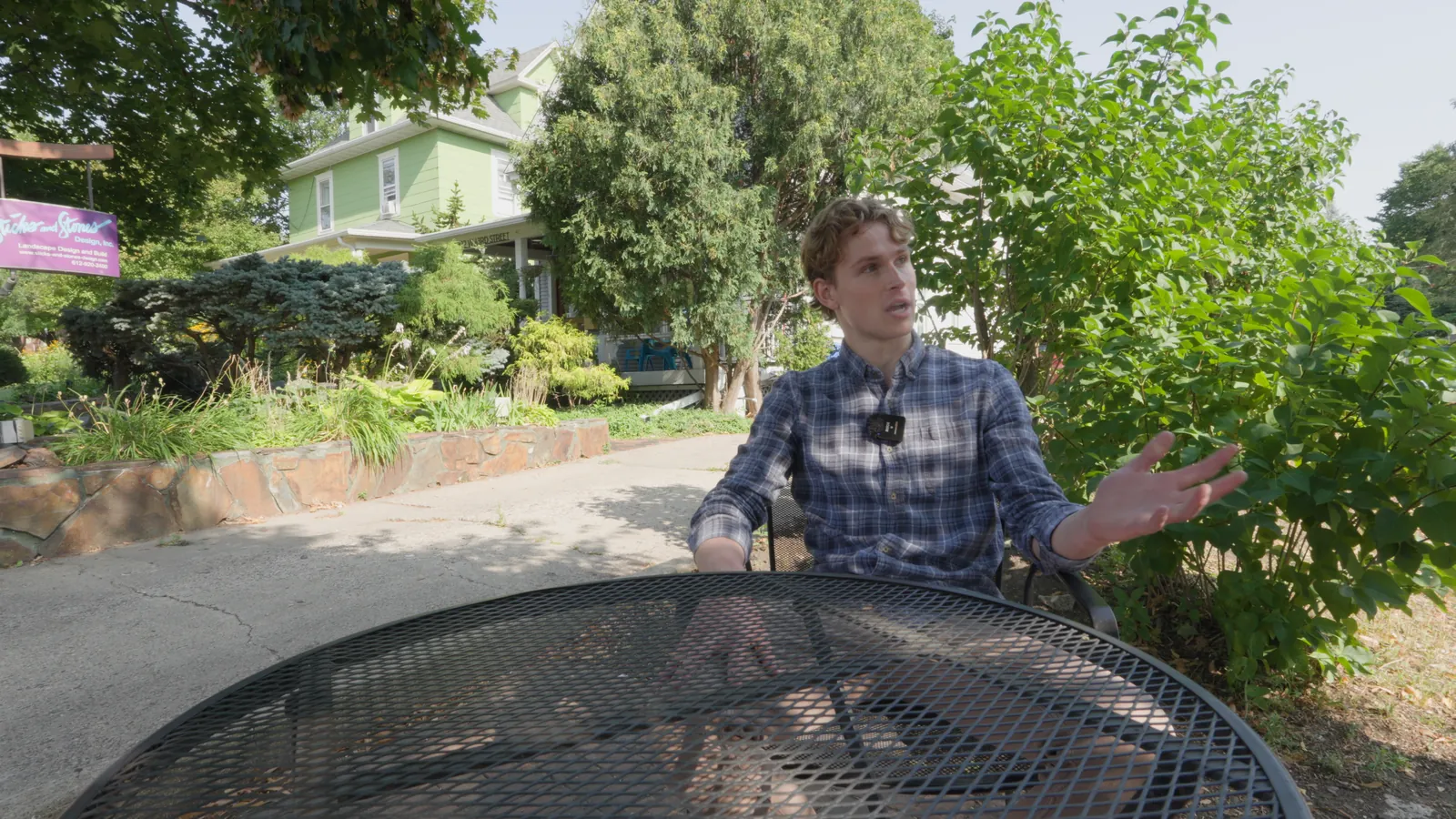
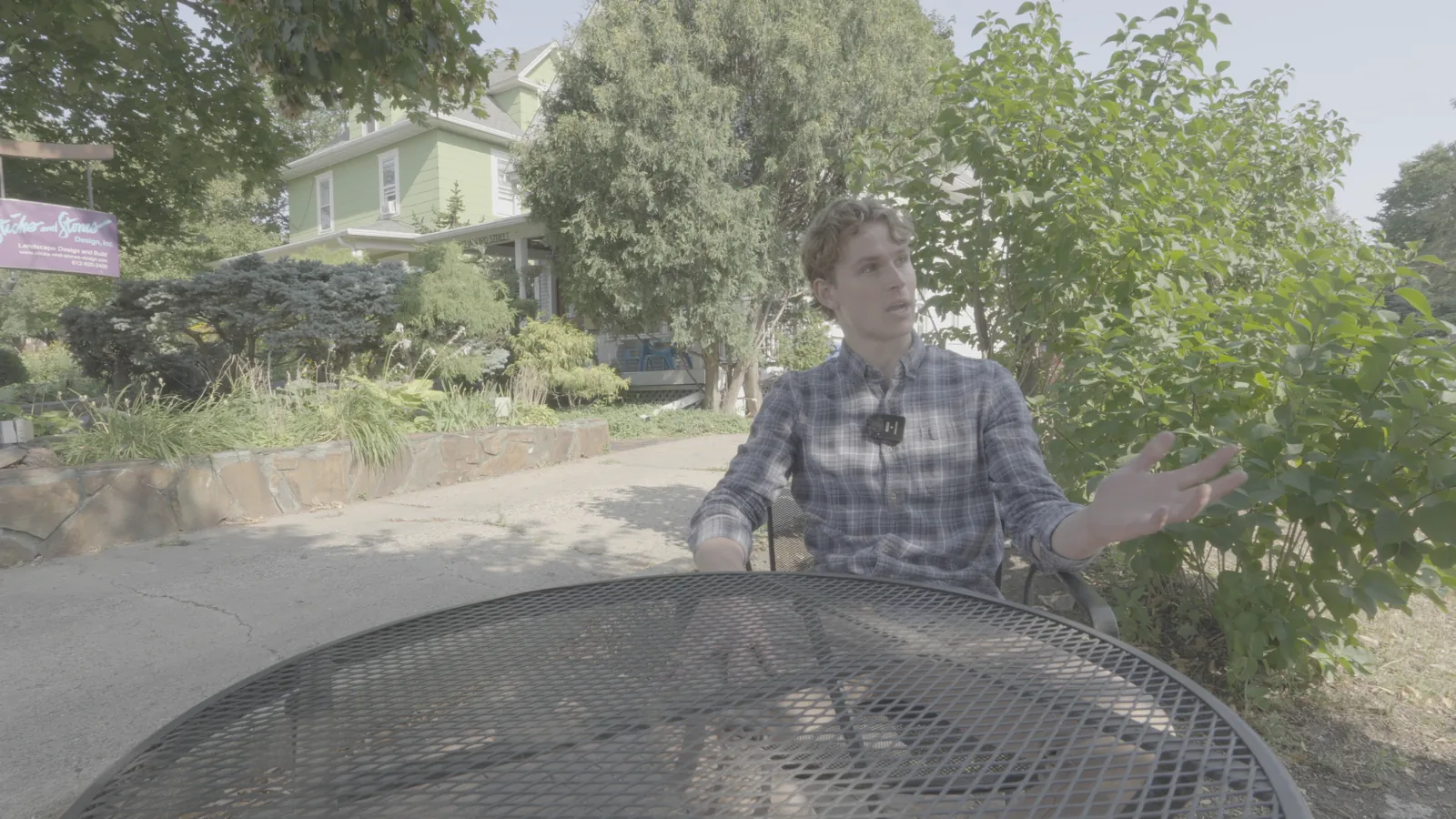
Shot on Sony FX30 (S-Log3) and re-encoded into Apple Log 2 / Apple Wide Gamut to show the conversion.
Apple Log 2 / Apple Wide Gamut
Built from Apple's published spec and checked against Apple's own LUT.
Download free conversion LUTInstallation guidesTry the free Soft Doc look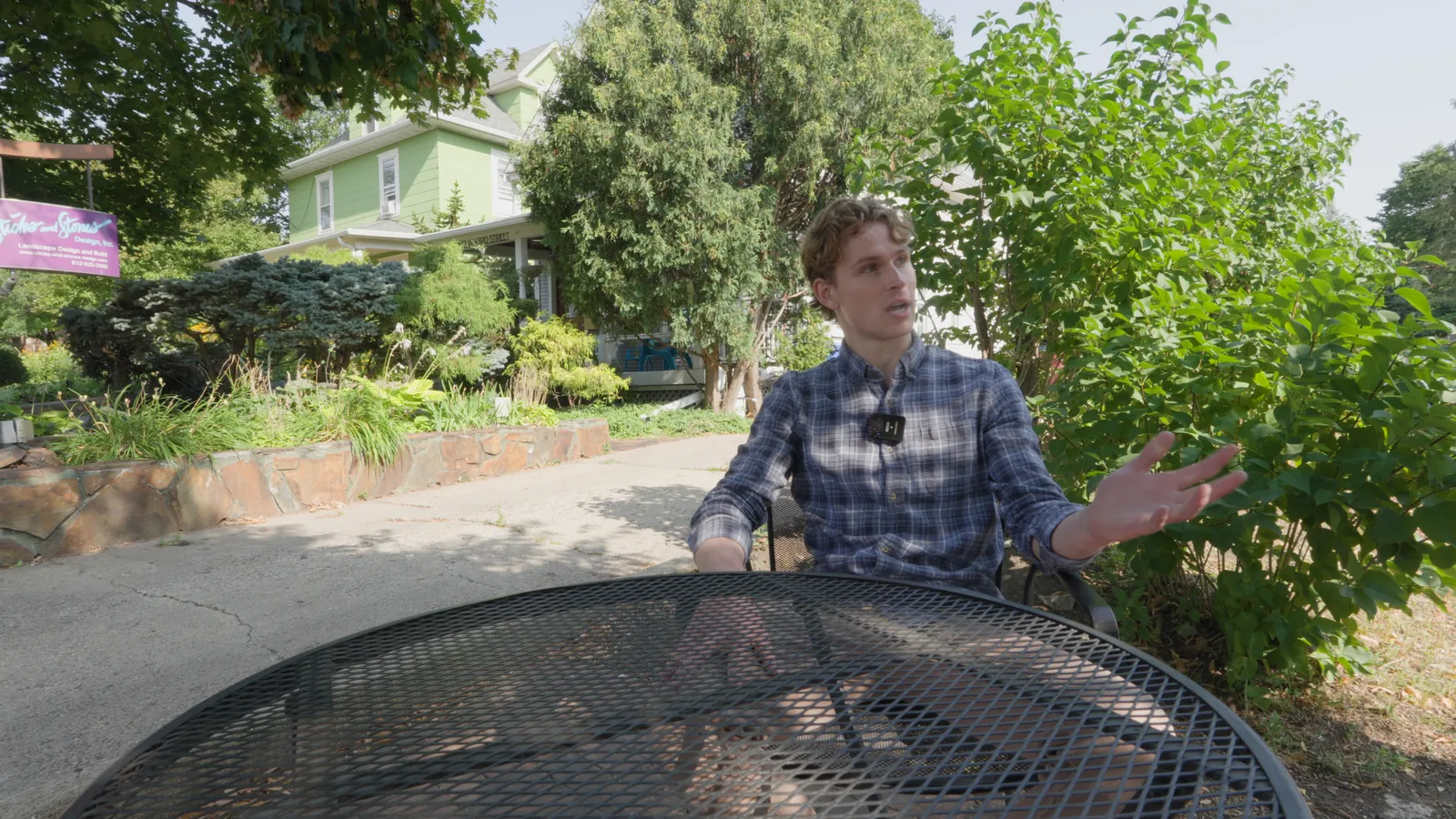
NeutralLook
Apple Log
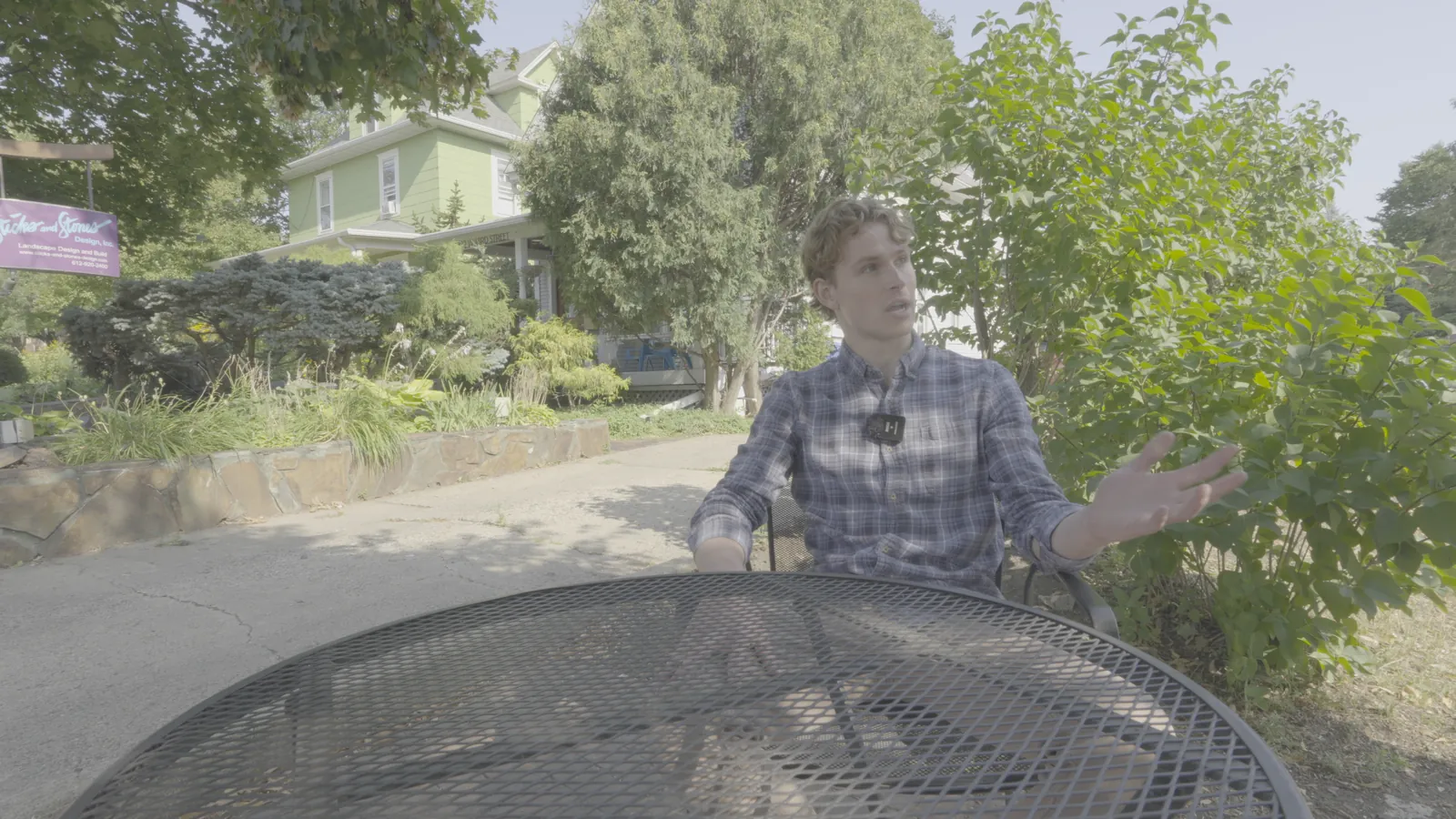
Shot on Sony FX30 (S-Log3) and re-encoded into Apple Log to show the conversion.
Apple Log
Built from Apple's published spec and checked against Apple's own LUT.
Download free conversion LUTInstallation guidesTry the free Soft Doc look